![DataSnipper-Logo-Light.png]](https://knowledge.datasnipper.com/hs-fs/hubfs/DataSnipper-Logo-Light.png?height=26&name=DataSnipper-Logo-Light.png)
Video Tutorial
Prerequisites
- DataSnipper Start Package or Financial Statement Suite Add-on Module
- 2 separate versions of a document
Start Procedure
- Start by importing the 2 separate versions of a document, for example, a Representation Letter.
- Open "Version Comparison" in the DataSnipper Ribbon and select the documents you've just imported. Click "Compare.
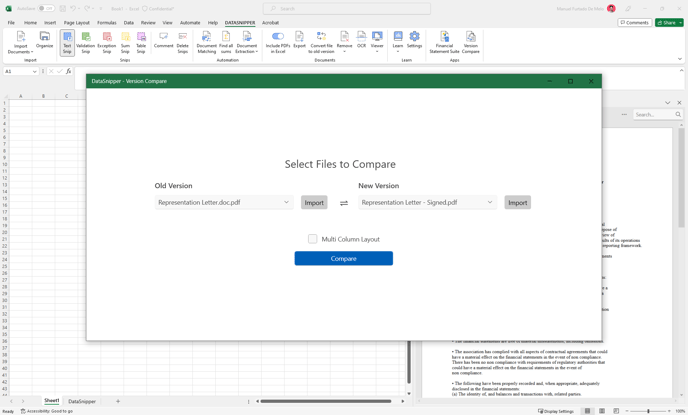
- DataSnipper will automatically review both documents entirely and denote all changes between the Old version and New version.
- You can then choose Export to Excel so you can inspect the changes between the two as Snips with direct cross references to said differences.
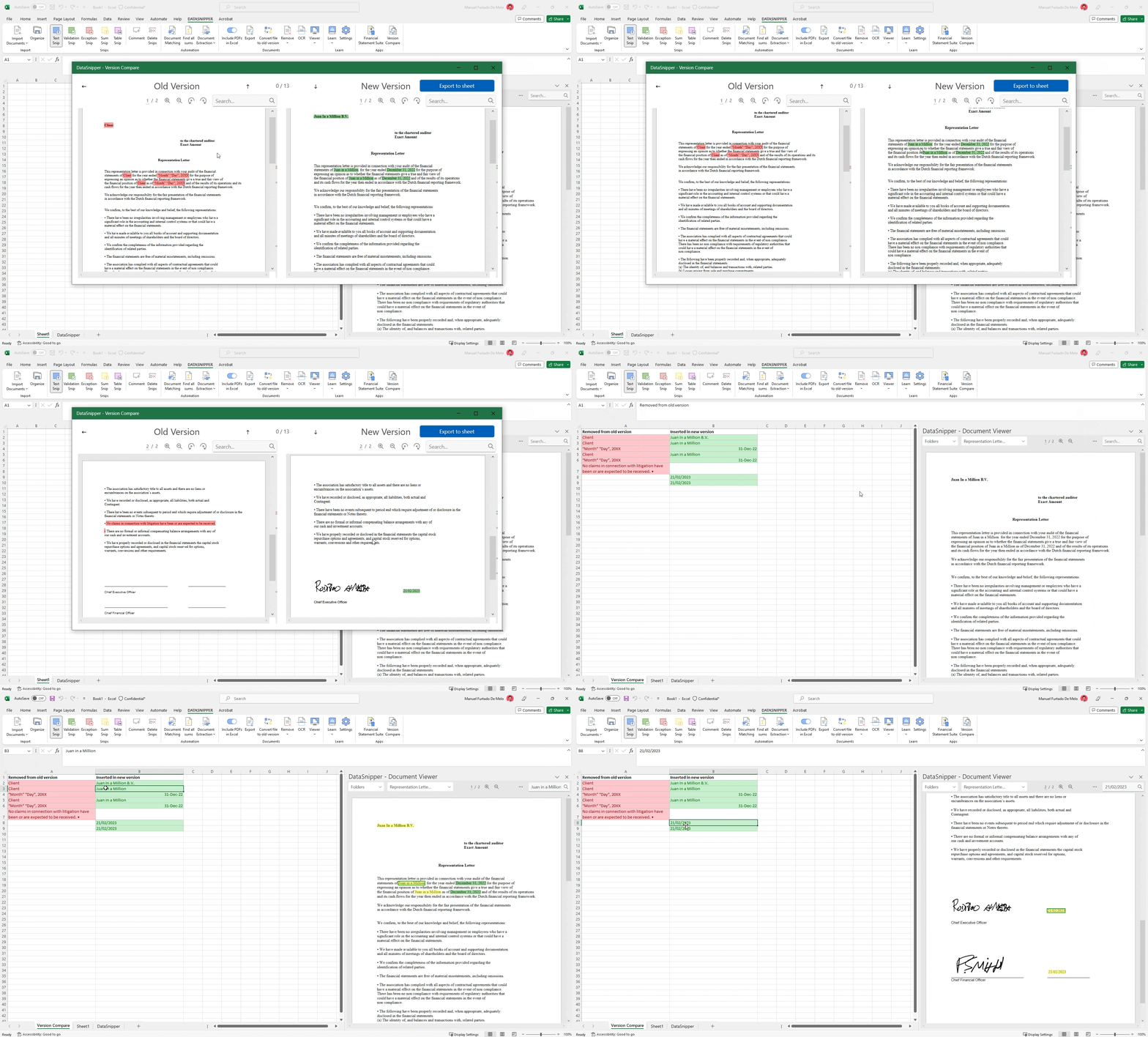
- Simply inspect the changes to ensure your document are accurate and with the highest quality.