![DataSnipper-Logo-Light.png]](https://knowledge.datasnipper.com/hs-fs/hubfs/DataSnipper-Logo-Light.png?height=26&name=DataSnipper-Logo-Light.png)
About AI Extractions
AI Extractions automatically extracts fields, tables, and footnotes at scale across all kinds of documents. Trace every value back to its source and accelerate reviews with prompting and reusable templates.
Principles of prompting the description field
You can use the description field to guide AI Extractions to obtain the exact data you need.
These principles will help you get consistent results.
-
Be specific about structure: Include column names, table layout, or document sections.
-
Add positional information: Use phrases like "next to," "under," "in the second column," "at the bottom."
-
Specify format: Include date formats, number formats, character lengths, or data types.
-
Handle variations: Describe different ways the information might appear.
-
Add exclusions: Tell the AI what to ignore.
-
Iterate and refine: Test your descriptions and verify the results! Some trial and error is part of the process
How to refine the description field
1. When field names appear multiple times
Example Scenario: Extracting "401K" values from a document where the term appears multiple times in different contexts.
Key: "401K"
Instead of: Empty description or just "401K value"
Use: "The version that is next to or under community depreciation"
2. Handling complex fields that need extensive prompting
Example Scenario: Extracting footnotes from K1 tax forms that can appear in different formats.
Key: "Footnotes"
Instead of: "Get the footnotes"
Use: "Capture all elements that start with LINE, ITEM, or BOX . They can be in a table. They can be in two types [specify the types]. Ignore pages that just have listings and dumps of codes and how-to-use instructions"
3. Adding format specifications
Example Scenario: Extracting province codes that should be two characters.
Key: "Province of employment"
Instead of: Empty description
Use: "Two character province code"
4. Provide visual location cues
Example Scenario: Extracting tax amounts from invoices where the tax may be labeled differently.
Key: "Tax amount"
Instead of: "Extract the tax amount"
Use: "Extract the tax amount (usually appears as a line item above the total, may be labeled as GST, VAT, Sales Tax, or Tax)"
5. Give examples of variations
Example Scenario: Extracting dates from invoices where the date field may have different labels.
Key: "Invoice date"
Instead of: "Extract the date"
Use: "Extract the invoice date (may appear as 'Invoice Date', 'Date', 'Issued', or 'Bill Date', typically in MM/DD/YYYY or DD/MM/YYYY format)"
6. Clarify ambiguous fields
Example Scenario: Extracting the final invoice total when multiple monetary amounts appear on the document.
Key: "Invoice total"
Instead of: "Extract the total"
Use: "Extract the invoice total (the final amount due after all taxes and discounts, not the subtotal or pre-tax amount). This is typically the largest number on the invoice and may be labeled 'Total', 'Amount Due', or 'Balance Due'"
Example use case: Payroll reports
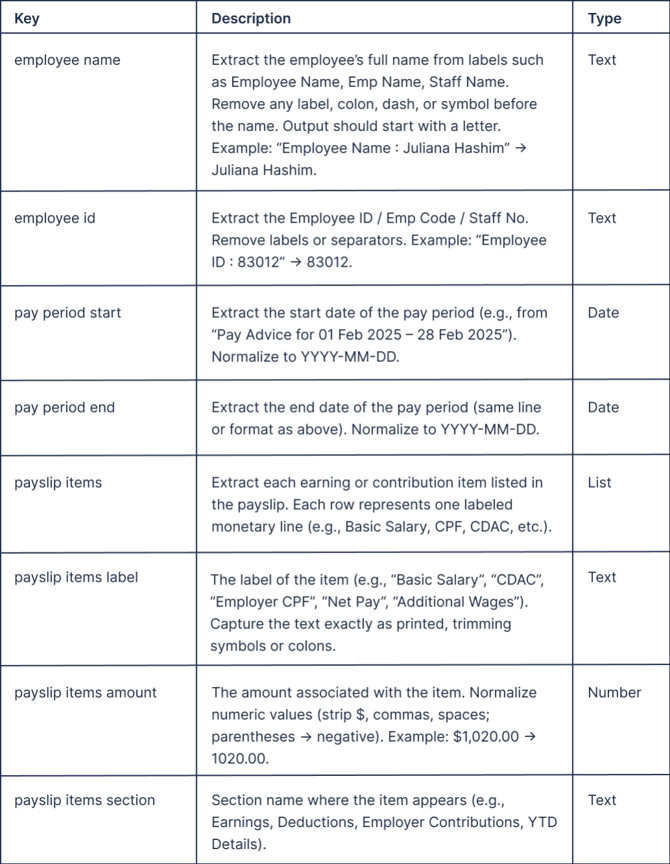
Schema Description (Set rules for better extraction)
Provides a concise overview of the extraction purpose and the type of content being processed. This description is used by the AI model during property extraction. Clear and precise descriptions help improve extraction accuracy.
Guidelines:
- Specify the extraction objective clearly; avoid vague or ambiguous instructions.
- Keep the description concise while including all relevant context.
- Ensure the description effectively guides the AI model’s interpretation of the content.
Tips for Success
-
Results are extracted from the wrong location - Add specific location descriptors to your field description.
Example fix: ”Extract 401K deduction (located under the accumulation date field, NOT the year-to-date 401K total shown in the summary section)." - Certain values may be missing as non-duplicate entries - Indicate in the prompts that all elements, including duplicates, should be extracted.
Example fix: “Extract all names, including duplicates, under the personnel column.” - Some values missing - Add a new key to target the missed elements with a prompt. Merge keys and prompts.
Example fix: ”Extract all dates in YYYY/MM/DD with numerals. Extract all dates in Japanese." - Extraction time depends on document complexity and may take 5–20 seconds per page. The current limit is 300 pages per document.
If it’s too slow, run the template on a smaller set first. If it’s still slow, split the set into smaller parts (multi-extract coming soon!)