![DataSnipper-Logo-Light.png]](https://knowledge.datasnipper.com/hs-fs/hubfs/DataSnipper-Logo-Light.png?height=26&name=DataSnipper-Logo-Light.png)
What is ManageDS?
ManageDS is the single place for enterprise IT admins and Customer Admins to manage your company’s entire DataSnipper deployment. It replaces the legacy Dashboard and brings together usage analytics, member management, templates, question banks for DocuMine, and authentication settings, all behind one login.
Use ManageDS to:
- Track usage and adoption — see active users, snips created, document throughput and add‑on modules.
- Manage your team — add or remove members, monitor seat utilisation and review last‑active dates.
- Share work across your team — publish Templates for Document Matching and Form Extraction, and curate Question Banks for DocuMine.
- Configure authentication — set up Single Sign‑On (SSO) and Directory Sync (SCIM) for secure, hands‑off user provisioning.
Accessing ManageDS
ManageDS is hosted at manage.datasnipper.com. When you onboard with DataSnipper, your Customer Success Manager invites the first administrators for your organization. Once invited, sign in with your DataSnipper account credentials (or your SSO provider, if SSO is configured).
Who has access?
ManageDS is restricted to users granted an admin role for your organization. Standard end users do not see ManageDS — they continue to use DataSnipper for Excel as usual.
Home
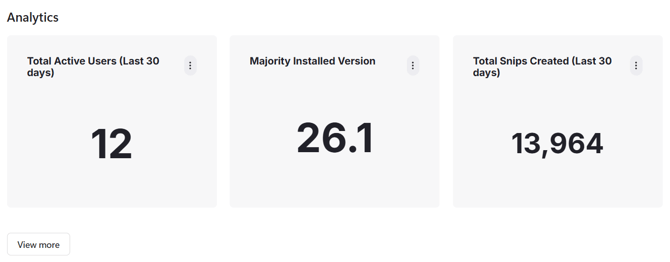
Home is your daily dashboard. It surfaces the most important usage figures in three large cards, recommends setup guides, and highlights the latest DataSnipper news.
Analytics summary tiles
The top of the page shows three at‑a‑glance metrics for the last 30 days:
You can click View more under the tiles to jump straight to the full Analytics page.
Setup guides
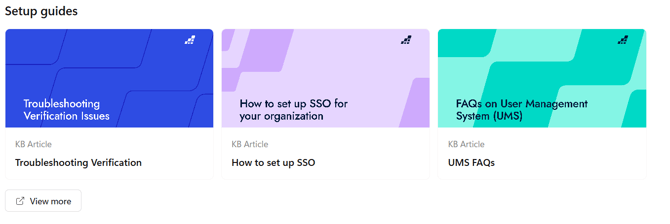
Below the analytics tiles, the Setup guides section lists short knowledge‑base articles that help you get the most from DataSnipper. Examples include Troubleshooting Verification, How to set up SSO, and UMS FAQs. Use this section when onboarding new admins or preparing for an internal rollout.
Latest in DataSnipper
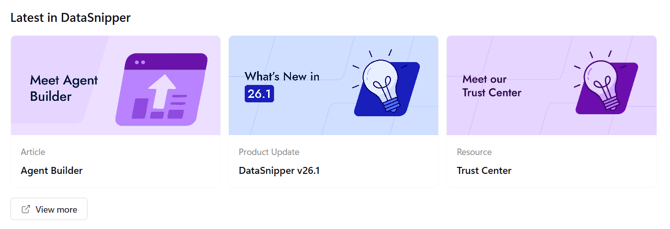
At the bottom of Home you will find the most recent product updates, articles and resources. Check in here when planning training sessions or for product release communications.
Analytics
The Analytics tab is the full Usage Dashboard. It contains every chart available to admins, organised by feature. Use it to understand how DataSnipper is being adopted in your team, where to invest training, and which features deliver the most value.
Advanced Data Export
In the top right of the Analytics page you will see an Advanced Data Export button. Use it to download a deeper data set for offline analysis when the on‑screen charts are not enough.
Scroll down to find charts covering workbooks created and reviewed, pages imported and recognized, manual and automated snips, table snips, DocuMine answers and quota, Excel Agents messages and quota, and any add‑on modules your organization has purchased. Each chart is labelled with a clear title and legend, hover over the bars or lines to read the exact monthly values.
Member list
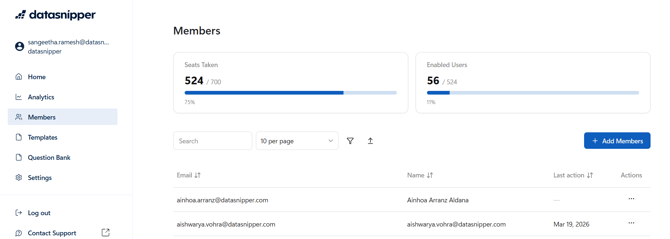
Below the summary cards you will find the full member table with the following columns:
Use the Search bar to find a specific user, the filter icon to narrow by status, and the upload icon to bulk‑import or export your list.
Seats and enabled users
At the top of the page two large cards summarise your licensing:
Use these cards to check whether you are nearing your seat limit before adding new members, and to spot dormant seats that can be reassigned.
Adding members
To invite new users:
- Click + Add Members in the top right of the Members page.
- Enter the email addresses of the people you want to invite.
- Confirm the invitation. Invited users receive an email with sign‑in instructions.
If your organization has Directory Sync (SCIM) configured under Settings, you do not need to add members manually — they will be provisioned automatically from your identity provider.
Company and Featured Templates
Shows how often your in‑house company templates are loaded versus DataSnipper’s built‑in featured templates. If your custom templates are rarely loaded, that is usually a sign they need promoting internally or refreshing.
Templates category let you save a Document Matching or Form Extraction setup once and reuse it across your whole team. They are managed centrally in ManageDS so everyone gets the same vetted configuration.
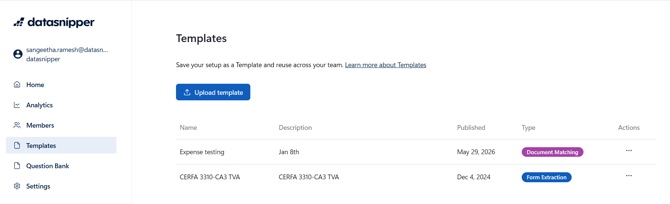
How to Upload the Templates:
- Click the Upload template button.
- Select the template file exported from DataSnipper for Excel.
- Verify the name, description and confirm the type.
- Once published, the template is available to every user in your organization the next time they open DataSnipper.
Question Bank
The Question Bank is where you save reusable question sets for different DocuMine use cases. Once a use case is published, your team can apply it to new documents in seconds.
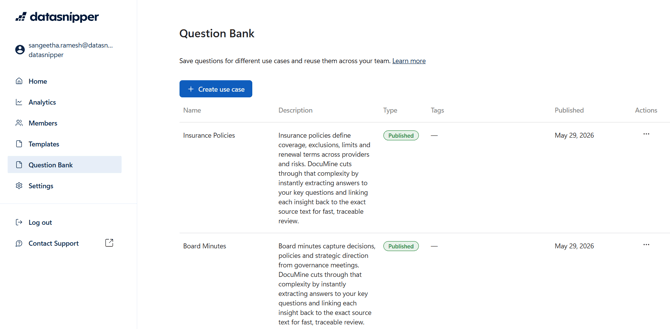
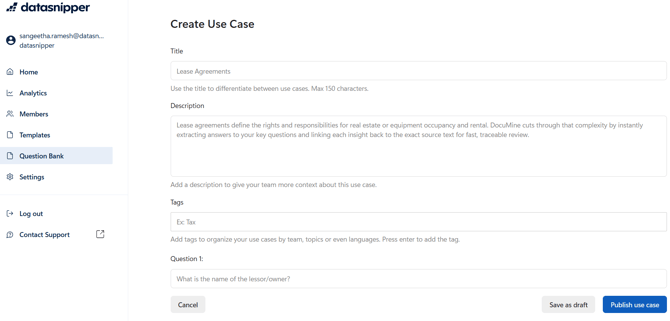
Creating a use case
- Click the Create use case button.
- Give the use case a name and a clear description of when it should be used.
- Add the questions DocuMine should answer for documents in this category.
- Save as Draft to keep working on it, or publish it so your whole team can use it.
Consumption Dashboard
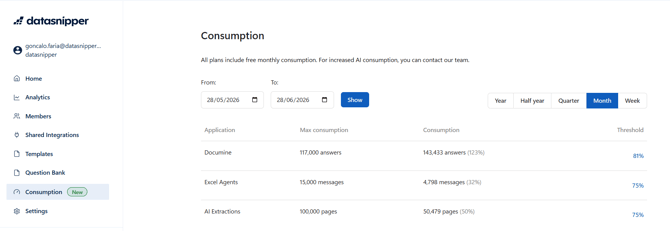
The Consumption tab gives you a complete view of your AI Feature credits. You can customize the period you'd like to see usage for, then view your maximum allowance, the credits used so far, and your notification threshold. To adjust when you're alerted, simply click the threshold or open Settings. We'll notify you the moment you're approaching your limit, so you know exactly when to top up your credits or upgrade your plan.
Settings
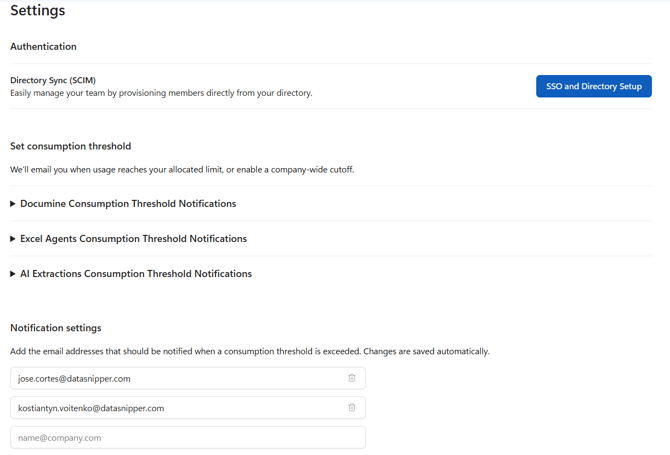
Settings is where you control how your team signs in to DataSnipper and how their accounts are provisioned.
Authentication
Two authentication options are available:
Configuring SSO and Directory Sync removes the manual work of inviting and removing users, and ensures access is always in sync with HR‑controlled group membership.
Before you start
SSO and SCIM are usually configured by your IT team in coordination with DataSnipper. We strongly recommend reading the dedicated SSO setup guide in the knowledge base before clicking Configure.
Set Consumption Threshold
Set up threshold notifications to receive email alerts as your usage approaches the allocated limit.
Set Consumption Threshold is a friendly heads-up for your usage. Rather than keeping an eye on your consumption all the time, you tell the system the point at which you'd like a nudge say, when you've used 80% of your allocated limit, and it quietly keeps watch in the background.
The moment your usage reaches that mark, the system sends a gentle email alert your way. That bit of warning gives you room to plan ahead, topping up or spreading usage out across the rest of your period, well before you hit the cap.
When setting it up, you'll usually choose the threshold you'd like to be alerted at and who should receive the email. Some teams like to set more than one, a soft warning early on, and a firmer reminder as they get closer to the limit.
How ManageDS gathers and protects data
ManageDS sends encrypted metrics data from the DataSnipper platform to metrics.datasnipper.com. To ensure data flows through, ask your IT team to allow‑list the domains metrics.datasnipper.com and api.datasnipper.com on port 443.
By default, DataSnipper collects only limited call‑home telemetry and anonymized user metrics. The data is aggregated over time and is not traceable to any specific individual. All data is stored encrypted on ISO 27001‑certified Azure servers in the Netherlands, and the platform is fully GDPR compliant.
For more information, see DataSnipper’s security page or our Privacy Policy.
Frequently asked questions
Who in my organization gets access to ManageDS?
Access is limited to users that are granted an admin role. Your Customer Success Manager invites the first admins, and those admins can then add others. Standard end users continue to use DataSnipper for Excel without seeing ManageDS.
Why does ManageDS replace the old Dashboard?
ManageDS brings every admin task into one portal: usage analytics, member management, templates, question banks and authentication. The old Dashboard only covered analytics. You will keep the same analytics in ManageDS and gain everything else.
Do I lose any old Dashboard functionality?
No. Every metric you relied on in the old Dashboard is preserved in the Analytics page, and many additional charts (DocuMine, Excel Agents, Templates) have been added.
Where can I get help?
Use the Contact Support link in the sidebar to open a ticket, or browse the knowledge base for step‑by‑step guides on every feature.
Last updated: May 28, 2026