![DataSnipper-Logo-Light.png]](https://knowledge.datasnipper.com/hs-fs/hubfs/DataSnipper-Logo-Light.png?height=26&name=DataSnipper-Logo-Light.png)
About AI Extractions
AI Extractions automatically extracts fields, tables, and footnotes at scale across all kinds of documents. Trace every value back to its source and accelerate reviews with prompting and reusable templates.
Pre-requisites:
- DataSnipper v26.1 or later
- DataSnipper Accelerate or Elevate Package
How-to use AI Extractions video:
Step-by-step guide
- Import your source documents. Here, we are importing a set of Payroll reports.
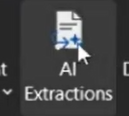
- Click on the AI Extractions button, and choose all the documents or folders you want to extract data from.
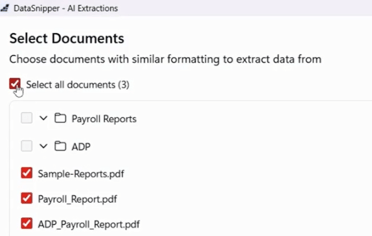
- Set the key to Payroll Entries. Because the document contains list-based data, change the field type to List.
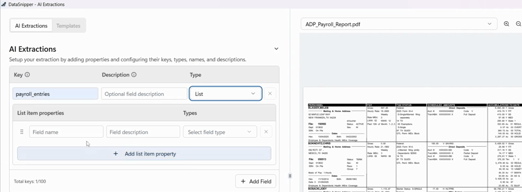
-
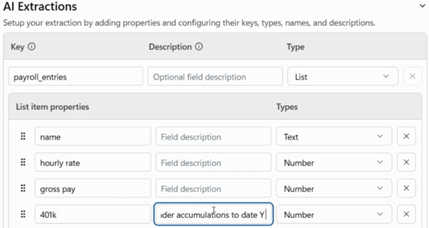
Add each property you want to extract—for example: Name, Hourly Rate, Gross Pay, 401(k). For each property, set the appropriate data type (Text, Number, Date, or Time). And click Run at the bottom of the screen.
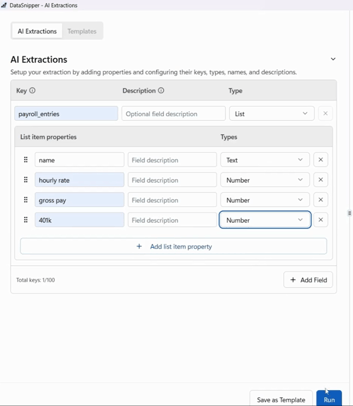
-
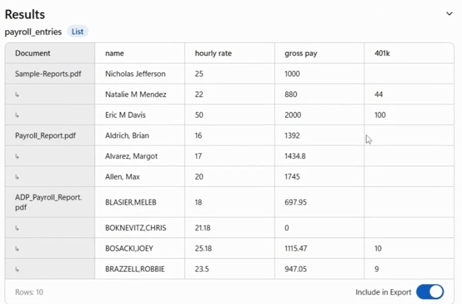
A preview of the extracted data will appear once processing is complete.
-
If a field isn’t pulling from the correct location (e.g., the 401(k) value), add more guidance.
-
In this case, specify that the 401(k) value should come from the Accumulation to Year column.
-
Adding a short description helps differentiate fields with identical names.
-
7. If you plan to reuse this setup, select Save as Template to store your configuration.
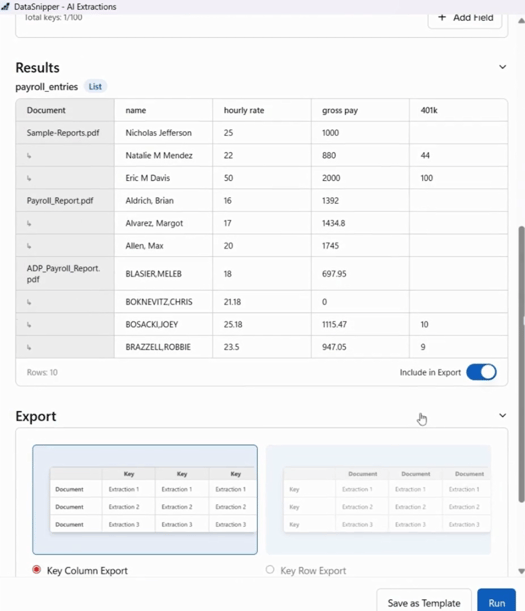
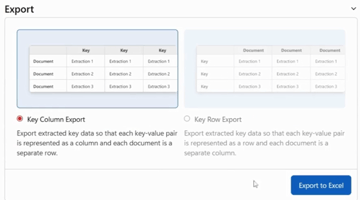
8. Choose your preferred export view and click Export to Excel.
The extracted data—and links to the original source documents—will be added to your workbook.
How to work with Templates in AI Extractions Video:
Data Extraction Field Types
- Text (String)Use Text when you want to capture content exactly as it appears in the document or when the value may need reformatting or cleanup after extraction. This is ideal for names, references, descriptions, or dates that are not consistently formatted. Text fields give you the most flexibility when the structure of the document or the extracted value is unpredictable.
- Number (Decimal)Use Number when the extracted value represents a measurable amount that may include decimals, such as monetary values, percentages, or rates. This field type is best for financial documents where precision matters and the value needs to be used directly in calculations.
- IntegerUse Integer when the value is a whole number, such as quantities or counts, where decimal values are not relevant. This helps ensure consistency and avoids unintended rounding when working with totals or comparisons.
- True / FalseUse True/False when the document contains a clear yes-or-no condition, such as a checkbox, confirmation, or validation. This field type is best for driving logic, rules, or automated checks based on whether a condition is met.
- DateUse Date when the extracted value represents a calendar date, such as an invoice date, contract start date, or reporting period. This allows the data to be compared, sorted, and validated correctly based on your system’s date settings.
Some countries use a month/day date format instead of the more widely used day/month format. As a result, the AI may not always be able to determine from context whether a date is in MM/DD or DD/MM format. In cases where documents contain dates without a specified year (for example, “12/10”) and it is implied that all dates refer to the same year, the text field should be used as a fallback to ensure accurate interpretation.
- TimeUse Time when the exact time of an event or action is important, such as approval timestamps or logged activities. This field ensures consistent time formatting for sequencing and time-based analysis.
- ListUse List when extracting repeated data where the structure may vary between documents, such as registers or loosely structured tables. Lists keep related values grouped together without requiring a fixed column layout, making them suitable for variable document formats.
- TableUse Table when the document contains a structured and repeatable table with consistent rows and columns. This is ideal for standardized documents like invoice line items or financial schedules, where enforcing structure improves accuracy and downstream analysis.