![DataSnipper-Logo-Light.png]](https://knowledge.datasnipper.com/hs-fs/hubfs/DataSnipper-Logo-Light.png?height=26&name=DataSnipper-Logo-Light.png)
What are the Excel Agents?
DataSnipper Excel Agents move beyond automation to bring intelligence directly into Excel. Instead of working through manual steps, you simply describe what you want to achieve and the Agent takes care of the execution. From reading source documents and reconciling data to applying audit and finance logic, Excel Agents execute complete tests end to end. The result is transparent, explainable output that is fully traceable back to the underlying evidence and ready for review.
Pre-requisites:
- DataSnipper version 26.1 or later
- Accelerate or Elevate DataSnipper package
- Access to the internet
Video tutorial
Step-by-step tutorial
- Open your Batch Payment Testing Excel workpaper and Import the relevant supporting documents
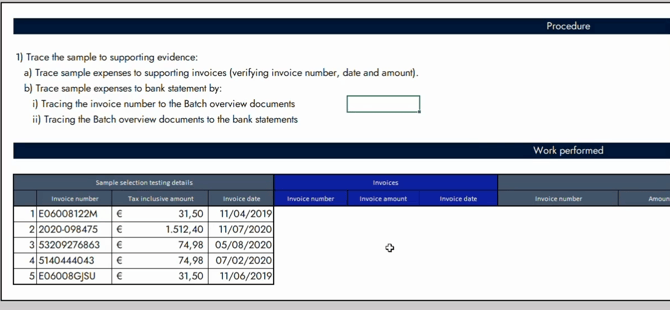
- To initiate Excel Agent, click on the icon within DataSnipper Ribbon

- Enter your instruction in the prompt to tell the Excel Agent what to do
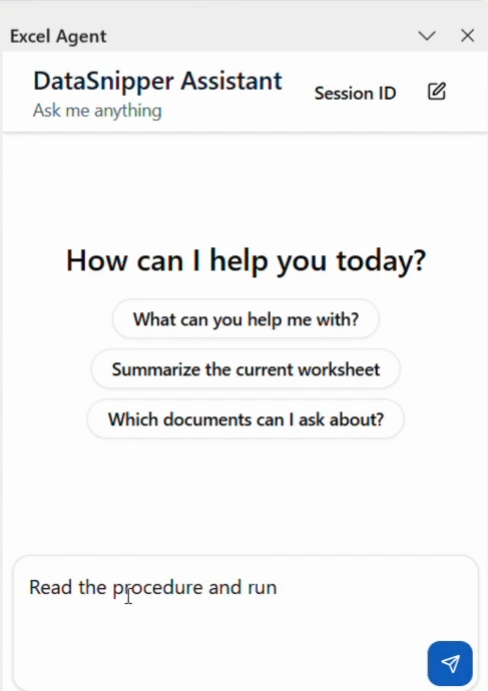
- The Excel Agent will analyze your instruction and summarize the procedure it plans to perform. If the summary looks correct, confirm to proceed
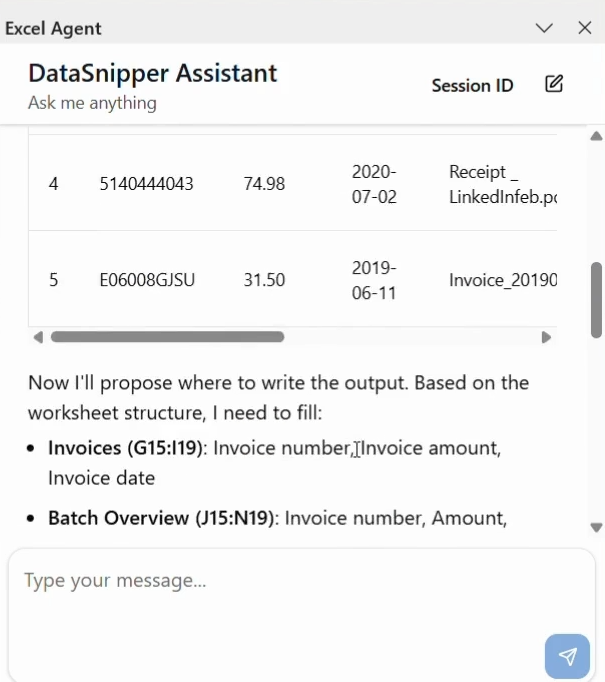
-
Once the procedure finishes, the Excel Agent will provide a detailed summary of the actions completed.
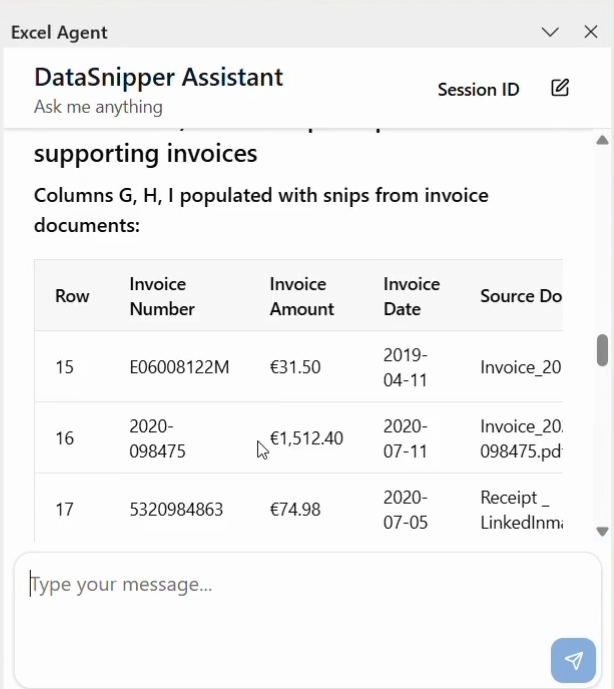
-
The workpaper will now include all generated outputs, along with the relevant Snips and excel formula wherever required.
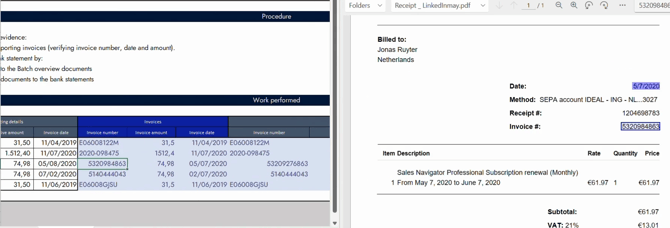
- Please use your professional judgement to review the output and make any required edits.
To understand how to structure prompts effectively, review this article.